How To Repair Corrupted USB And Data Recovery File From USB
USB flash drives are convenient storage devices that help us transfer and store data easily. However, it’s not uncommon for users to encounter issues with their USB drives, such as being unable to access the files, or receiving errors like “USB Device Not Recognized,” “Please Insert a Removable Drive,” “You need to format the disk before you can use it,” or even “RAW USB memory.” These problems can leave you wondering if your data is lost for good, but don’t worry — recovery is possible!
In this guide, we will discuss how to repair a corrupted USB flash drive and recover data using various methods. Let’s dive in.
Understanding USB Errors
USB drive errors can be divided into two main categories: logical errors and physical errors.
Logical Errors
Logical errors occur when there is an issue with the file system or the data stored on the drive. This could happen due to software problems, improper ejection, or corruption caused by a virus. Fortunately, logical errors are often fixable with the right tools and methods.
Physical Errors
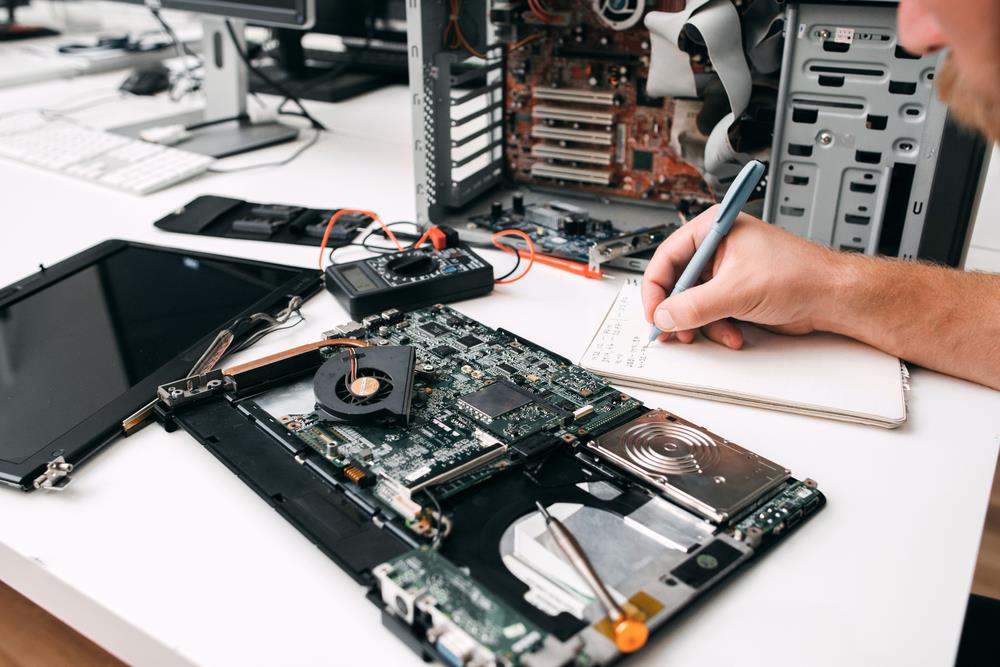
Physical errors are caused by hardware damage. This could involve physical wear and tear, faulty connectors, or internal components that are broken or malfunctioning. In this case, repairing the USB drive may require specialized knowledge and tools, such as soldering. If the data on the USB is crucial, professional recovery services may be needed to extract the files.
Common USB Errors
“RAW USB Memory” – This error typically occurs when the file system is corrupted, and the drive is unallocated or unreadable.
“USB Device Not Recognized” – The computer fails to recognize the device due to driver issues, a corrupted file system, or a physical problem with the USB stick.
“Please Insert a Removable Disk” – The drive is not showing up, possibly due to corruption or a missing file system.
“You Need to Format the Disk” – This error indicates that the file system of the USB drive is corrupted, and the system can’t read the data without formatting the drive.
Step-by-Step Guide to Recover Data from a Damaged USB Flash Drive
Step 1: Verify the Issue
Before attempting to repair your corrupted USB, verify if the issue is logical or physical.
- Logical issues: If the drive is detected but you can’t access files, it’s likely a software problem (e.g., corrupted file system).
- Physical issues: If the drive is not recognized at all, there may be a hardware failure.
Step 2: Use Data Recovery Software
If your USB drive is logically corrupted, data recovery software can help restore your files. One of the most effective tools for this is FonePaw Data Recovery, which can recover lost data from USB drives and other storage devices.
How to Use FonePaw Data Recovery:
- Download and Install: Install FonePaw Data Recovery on your computer.
- Connect Your USB: Insert the corrupted USB flash drive into your computer.
- Launch the Software: Open the data recovery software and select the USB drive as the target for scanning.
- Scan the Drive: Choose a scan type — “Quick Scan” for fast recovery or “Deep Scan” for a more thorough search. The deep scan is useful for finding files that are hidden or severely corrupted.
- Preview and Recover: Once the scan is complete, preview the files that the software has found. Select the ones you want to recover, then click “Recover” to save them to a secure location (preferably not on the same USB drive).
Step 3: Try to Fix the File System
If the data recovery software retrieves your files, but you still encounter file system issues (e.g., needing to format the disk), you can try repairing the file system using built-in tools like CHKDSK (Check Disk) on Windows.
Steps to Repair the File System with CHKDSK:
- Open the Command Prompt on your computer.
- Type the following command and press Enter: bashCopyEdit
chkdsk X: /f(Replace “X:” with the drive letter of your corrupted USB drive). - The system will attempt to fix any file system errors. Once the process is complete, try accessing your USB again.
Step 4: Format the USB Drive (If Necessary)
If the file system is beyond repair or you’re still encountering errors, you may need to format the USB drive to restore functionality. Important: Formatting will erase all data, so ensure you have recovered your files before proceeding.
To format the USB drive:
- Open File Explorer.
- Right-click the USB drive and select Format.
- Choose a file system (NTFS, FAT32, exFAT) and click Start.
- Once the format is complete, your USB drive should be functioning again.
Step 5: Seek Professional Help for Physical Damage
If the USB drive is physically damaged, repairing it on your own may be difficult and risky. For hardware issues like a broken connector, internal component failure, or if the data is very important, it’s advisable to seek professional help from a data recovery service. They have the specialized equipment and knowledge to repair the hardware and recover your files.
Preventing Future Data Loss
To avoid issues with corrupted USB drives in the future, follow these tips:
- Eject Properly: Always safely eject the USB drive from your computer to prevent corruption.
- Back Up Your Data: Regularly back up important files to another device or cloud storage.
- Use Antivirus Software: Protect your USB from viruses by scanning it regularly with antivirus software.
- Avoid Physical Damage: Keep the USB drive in a safe place and avoid exposing it to extreme conditions.
Conclusion
Corrupted USB drives are a common issue, but with the right tools and methods, you can recover your data and restore the drive to working condition. Whether you’re dealing with logical errors or physical damage, it’s important to first recover your files, then attempt repairs or seek professional help if needed. Always remember to back up your data regularly to prevent future loss.