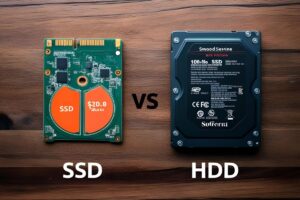
If Your Hard Drive Fails Like This You Can Data Recovery
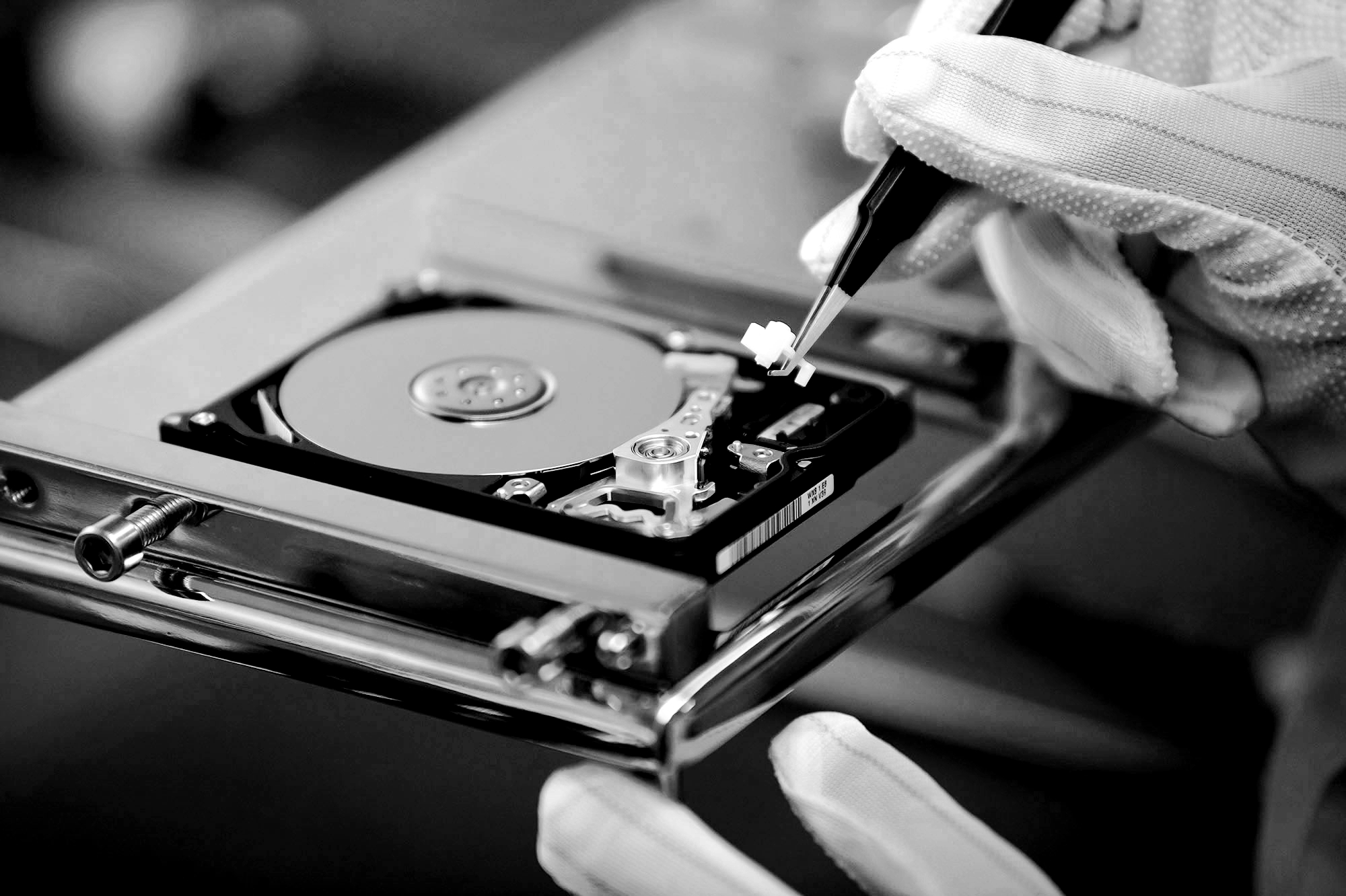
Despite the increasing reliance on cloud storage, traditional hard drives are still essential for many users, especially when dealing with large files like photos, videos, and project data. While we aim to regularly back up our data and protect our devices, hard drive failure can still occur unexpectedly.
Before panicking, it’s important to stay calm and assess the situation carefully. The first step is determining whether the problem is mechanical or software-related, as this will dictate the recovery process.

Recognizing the Symptoms of Hard Drive Failure
Mechanical Failures
If your hard drive is experiencing mechanical issues, you may notice:
- Strange noises – Clicking, grinding, or buzzing sounds typically indicate mechanical damage.
- Slow performance – If the drive takes longer than usual to read or write data, it could be due to mechanical problems.
- No power – If the hard drive does not light up or show any signs of activity, the power supply or internal components may be damaged.
SSD Failures
Unlike traditional hard drives, Solid-State Drives (SSDs) do not have moving parts, so they do not make mechanical noises. However, if an SSD fails, you may notice:
- The drive stops responding – If the SSD is not recognized by your computer.
- Corrupted data – Files or folders that cannot be accessed or read.
External Hard Drive Issues
If your external hard drive is not functioning properly, consider these common failures:
- Faulty USB connector – If the USB cable is not properly connected or the port is damaged, the drive may not be recognized by your computer.
- Power failure – If your desktop external hard drive has a power supply, it may have suffered a failure, causing the device to not power on. In this case, try swapping the power supply with another compatible one to see if the drive powers up.
Steps to Take for Data Recovery
Before attempting data recovery, make sure to follow these steps:
- Disconnect the drive – Avoid using the device until you have assessed the problem. Continued use may worsen the damage.
- Check for simple issues – Ensure that the power supply is working, cables are securely connected, and there are no external obstructions.
- Try a different computer or port – Sometimes, the problem lies with the computer or the USB port, so try connecting the hard drive to another machine or a different port.
- Inspect the drive’s physical condition – If the drive is making abnormal noises, it could indicate a physical failure. In such cases, avoid opening the drive yourself, as this could make the problem worse.
Attempting Data Recovery
1. Using Data Recovery Software
If the drive is still recognized by your computer, you can attempt data recovery using software like Recuva or EaseUS Data Recovery Wizard. These tools can scan for lost or corrupted files and allow you to recover them.
2. Professional Data Recovery Services
If the hard drive is not detected by your computer or makes unusual noises, it’s best to seek professional data recovery services. These experts have specialized tools and knowledge to retrieve data from physically damaged drives.
3. Replacing the Enclosure
If the failure is related to the external hard drive’s enclosure, you can try replacing the enclosure. Carefully open the device (ensuring that no static electricity interferes with the process) and check for loose or damaged connectors. If the enclosure is faulty, you can transfer the internal hard drive to a new case.
Conclusion
While hard drive failure can be frustrating, it’s important to approach the situation calmly and carefully. Whether it’s a mechanical failure or an issue with the external casing, there are steps you can take to recover your data. If you suspect physical damage, consider reaching out to professionals to ensure the best chance of recovery without further harm to your files.